Tag Archives: iphone 13 pro

How to Use your iPhone 13

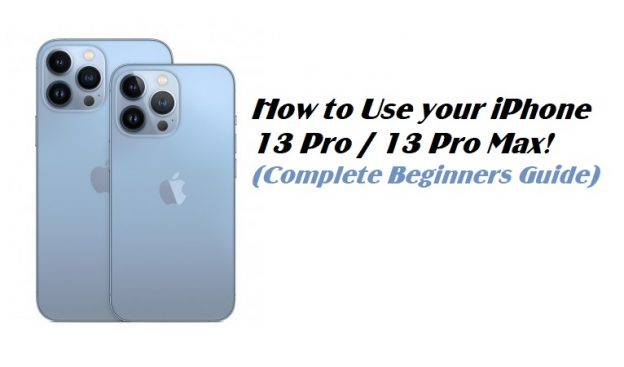
How to Use your iPhone 13 Pro / 13 Pro Max! (Complete Beginners Guide)

The iPhone 13 and the 13 Pro Max are Apple’s current generation flagships showcasing the best that Apple has to offer. Similarly, there are feature packed and bring major improvements from their older siblings, the iPhone 12 series despite having similar form factors. As you can tell, Apple has done many under the hood changes to provide additional features to its users without many changes to the devices exterior appearances. So, we have created a Beginners guide on How to use your brand new iPhone 13 pro/max to its fullest.

Beginners Guide to Use the iPhone 13 Pro/Max

Before we get started on the software side of the device, let’s have a quick run down into its physical specs and then start from there on. As you hold you brand new iPhone 13-Pro/Max, you can find that the notch on this device is smaller than its older siblings. However, the rest of the hardware still remain unchanged from the previous models like the volume button, mute switch, the lightning ports and the number of lenses on the back. Similarly, both the iPhone 13-Pro/Max also supports wireless charging through Mag-Safe and all its accessories.

Initial Setup process:

Now, let’s move to the software and the working features of both of the devices. Right from the start, Apple provides some of the best set-up guides to guide users through their setup process. Here, this step is very detailed and users shouldn’t have any trouble setting up their brand new devices.

iPhone 12 Pro The Ultimate Camera and Photo Setting Tutorial

The Lock-screen:

After the setup process, let’s move to the lock screen section of your brand new iPhone 13-Pro/Max devices. Here, Users can see some basic information’s like the time, date, flash and camera icons with the owner’s current notifications. Furthermore, users can long press their current notifications to find additional information’s about them and various actions that they can take against them.  Next, users can turn on and use both the cameras and the flash from their respective icons shown at the bottom of their lock screen. Users only have to press and hold each icon to use either of those features. Additionally, Users can also access the camera through dragging the lock screen to the left. For exiting the app, Users only have to drag from the bottom of their screens.

The Control Centre:

The Control Centre is an easy access point of various important settings in the device like the Wi-Fi toggle, brightness toggle, signals, Bluetooth etc. Users can access the control Centre in their respective devices by swiping down from the top right corner of their iPhones. Now, they are shown many setting for their devices that they can change to their likings. Some of the most useful one includes the Airplane mode, device orientation, brightness, Music, flash and signal settings like Wi-Fi, Bluetooth etc. Users can easily change all those settings from the Control Centre itself.

The Home-Screen:

To get into our home screens, Users only have to swipe up from their respective lock screens. Here, we’ll have to enter our respective passwords to get into our home screens or the Face ID will unlock our device for us. In the home screen, we can find all of our apps and widgets that we have installed on our device. Also, there are many homepages and one can access them through swiping left or right on their devices.

For adding additional widgets, Users can swipe to the left until it shows the iPhones widget panel. Here, users can hold and move a Widget to drag it into their respective homepages. This takes us to the “Editing Mode” in our iPhones and we can swipe up to save all our changes. Next, we can also hold down in an app or widget icon to get into the editing mode as well. For deleting and removing both apps and widgets from our home screens, we can tap on the Minus sign above those icons to do so. Also, Users can swipe their home screens to the far right to reveal their App library. The App library consists of all the apps currently installed in our devices.

The Navigation:

All current generation iPhones use gestures to navigate throughout their UI. Here, users are greeted with a navigation bar at the bottom of their screens when they open any Applications. For getting back into their home screens, users just have to swipe that navigation bar up. Additionally, Users can cycle between their recent apps through either swiping their navigation bar to the left or right. Similarly, users can access their multi-tasking menu by dragging the navigation bar and holding it until they see other apps and lifting it up afterwards. This will show us all our recent apps that are open in the background and users can swipe them up to close them.

These are the basics and anyone can get used to their iPhone 13-Pro/Max easily through them. Additionally, users can also start using other apps and setting in the phone to know about them more deeply. After that, they can pretty much mix and match various settings in their phone to their own likings.

iPhone 13 and 13 pro the Ultimate Camera and Photo Setting

iPhone 13 and 13 pro the Camera and Photo Setting Tutorial | iOS 15

The iPhone 13 and the 13 pro are some of the best camera phones that money can buy right now. They combine Apple’s excellent hardware and software features to snap great looking picture anytime anywhere. Although their camera hardware’s haven’t changed much from their older siblings, they bring many under the hood improvements and changes that significantly increase their camera capabilities. Considering this, we have created the ultimate iPhone 13 and 13 pro camera and photo setting tutorial for iOS 15 to guide you through its features and changes. So, read this article to the end if you want to use you iPhones camera’s to the fullest.

iPhone 13 and 13 Pro Camera and Photo Setting Tutorial:

As soon as we enter the iPhones camera app, we are greeted with some of the basic controls like the shutter button, last photo taken, camera toggles and more. Similarly, users can switch between several camera modes like photo, videos, portrait and others through swiping right and left in the camera app itself. Likewise, these features are also available for the selfie camera as well.

Camera Modes:

Here, the basic Photo and Video modes are straight forward but there are additional modes like portrait, panorama, cinematic, Slo-mo, time lapse and others with varying use cases. For instance: – the portrait mode is useful for capturing blurred background pictures and cinematic mode is basically portrait mode for videos. Meanwhile, panorama is an ideal mode to capture images with a much wider field of views than the camera lens itself.  This makes it an ideal mode to shoot landscape photography as well. Other features include Slo-Mo which means slow motion videos. Likewise, time lapse mode allows users to capture multiple images at certain intervals which are later fused together to create one single video file.

Shutter button and its uses:

However, let’s start with the basics of the camera app and then move forward to the complicated bits and parts. In the camera app, the shutter button itself has many functions that we can access through certain gestures. For example: – you can click it once for a single picture or swipe the shutter button to the left for taking burst pictures. Similarly, users can tap and hold the Shutter button to take short videos known as “Quick take” or swipe it right to the lock which initiates normal long videos. Also, users can use the volume buttons to take normal pictures as well. Additionally, there is a setting in the camera app that lets users take burst mode pictures through the volume up button as well.

Using the different Camera lenses:

Now, let’s move to the different lenses of an iPhone and their best use cases. An iPhone 13 pro has 3 lenses on its back namely the main, the ultra-wide and the telephoto. The regular 13 has similar camera systems but lacks a telephoto lens. Now, the numbers 0.5, 1, 3x on the camera app all activate different lenses in the phone. For instance, the 0.5 means the ultra-wide lens for capturing wider images and the 1 basically means the standard main camera with normal field of views.

Meanwhile, 3x activates the telephoto lens that can zoom into images for up to 15 times. Here, users can also manually set their zoom level through tapping and holding one of those three numbers. This brings us a slider that allows us to manually set our desired zoom levels. Additionally, Users can also pinch on the iPhone camera app to set the zoom levels as well.

iPhone 12 Pro The Ultimate Camera and Photo Setting Tutorial

Macro and Night mode Photos:

The iPhone 13 and the 13 pro can take macro images through their ultra-wide lenses as well. Here, the feature is activated automatically as soon as the device detects an object that is nearer than 14cms. On the other hand, users can manually turn on night mode in the camera app or the iPhone switches in this mode for low light scenarios. The icon of Night mode sits next to the Flash icon and is easily visible when it’s activated. Similarly during night mode shots, the iPhone uses long exposure time to take beautiful shots. Here, we should keep the device still during the process for best results. Additionally, users can also manually increase the exposure time through the night mode icon for even better results.

Editing Photos in an iPhone

Both the iPhone 13 and the 13 pro come with a built in photo editor as well. Users can access this menu through the “Edit” icon shown below an image taken previously. Some of the basic settings include Auto mode, exposure, Brilliance, highlights, shadows etc. for the users to mess around. Basically, the iPhone automatically optimizes the images for us in the Auto mode. However, its entirely on us to keep the changes or mess around other settings to create our desired results.