Category Archives: Computer Problems And Solutions

Free Trial ESET Internet Security is as safe as activated ESET

Is Free Trial ESET Internet Security is as safe as activated ESET with subscription?

You have come up to right place to find some information about ESET Internet Security and its free trial. We will answer your query today and help you more on this.

ESET Internet Security is a comprehensive antivirus and security software. It protects your devices from online threats, such as malware, ransomware, phishing, and identity theft. It also offers features such as firewall, parental control, webcam protection, and password manager. You can download ESET Internet Security from its official website or from other sources, such as CNET.

ESET Internet Security offers a 30-day free trial that you can use to test its features and performance. According to ESET’s website, the free trial is “fully functional” and works exactly as if you would use a purchased license. This means that the free trial version is as safe as the activated version. And, you can enjoy the same level of protection and security.

Also Read: Fix Windows Was Unable To Connect To The Selected Network

However, there are some differences between the free trial and the activated version of ESET Internet Security, such as:

• The free trial does not require any credit card or payment information, while the activated version requires you to purchase a license and renew it periodically.

• The free trial expires after 30 days, while the activated version lasts for the duration of your license, which can be 1, 2, or 3 years.

• The free trial does not allow you to access the ESET Customer Care service, while the activated version gives you access to technical support and customer service.

To use the free trial of ESET Internet Security, you need to create an account and provide your email address. You will receive a confirmation email with a link to download the software and a trial license key. You need to enter the license key during the installation process to activate the free trial. You can also use the trial license key to activate the software on up to 3 devices.

After the free trial ends, you have the option to purchase a license and continue using ESET Internet Security. Or, you can uninstall the software and switch to another antivirus product. If you choose to purchase a license, you can do so from ESET’s website or from other authorized resellers. You will receive a new license key that you can use to activate the software and extend your protection.

If you want to learn more about ESET Internet Security and its free trial, or pros and cons of ESET Internet Security, you can go through this article highlighted.

We hope this helps you understand the difference between the free trial and the activated version of ESET Internet Security, and how to use them safely and effectively. Have a nice day!
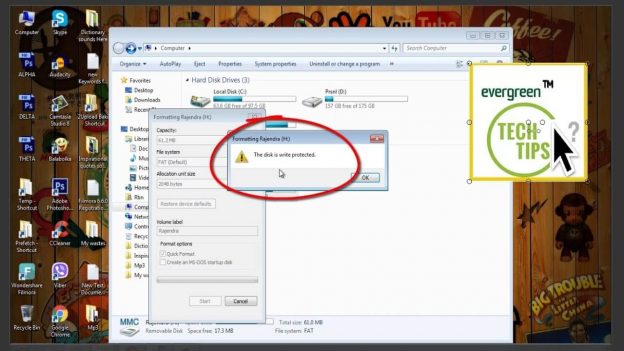
How To Remove Write Protection From SD Card

How To Remove Write Protection From SD Card

SD Cards are one of the most accessible and cheap storage devices that are supported across a wide range of devices. Similarly, they come in many storage sizes and shapes that one can choose according to their needs and use cases. Also, their write and read speeds are pretty high and some even support the PCI and NVME interferences as well. Some of the most popular use cases of SD cards include in Cameras, Mobile devices, Laptops, handhelds etc.

Say you just found the perfect SD Card for your device but later found out that you can’t write anything in it. It’s called Write Protection and it can be pretty frustrating as you can’t add or remove things from your SD-Card. Fortunately, it’s easily fixable and we’ve listed the most popular methods that you can use to solve the issue. Let’s get started.

Remove Write Protection from SD Card As Follows:

  1. Check and Toggle the Physical Switch

The first thing that you need to check when you encounter this issue is to check the physical switch found in your SD Card. And, all SD cards come with this Physical Switch that acts as a locking mechanisms for your data. Now, just remove your SD Card and search for its physical switch. Here, you need to make sure that the slider is at the Top far away from the “Lock” marking. Once you’ve confirmed that, simply insert your SD Card again and this should have fixed your Write Protection problem.

  1. Check its Properties

Some SD Cards in Windows have a special Write Protection toggle that locks it from any changes. Now, this setting is disabled from factory but you might’ve enabled it accidently. Simply go into the File Explorer and right click your SD Card to check its properties. Here, check if the toggle for Write Protection and disable it if it’s enabled. This will instantly solve your problem. Note: – only Some SD Cards have this option for Windows so don’t worry if you can’t find the option for yours.

Also Helpful: Do This as Soon as You Get an iPhone X

  1. Clear the Cards Attributes from Command Prompt

This is the final method that you can use to remove Write Protection if the above methods fail for you. To start, you’ll need a Windows PC or Laptop and signed into the Administrator Account. Next, insert your SD card into the Laptop and follow the steps shown hereafter:

  • Right click on the start menu and open the “Command Prompt” as an administrator. Also, you can search for “Command Prompt” from the Windows Search as well.
  • Once loaded, enter this command: diskpart and hit enter. Now, confirm the app dialogue that follows.
  • In diskpart, enter: list disk This will immediately show all disks connected to your PC. After that, you need to find and verify your SD Card from the available disks. Usually, it’s at the last and has the lowest storage space in the list.
  • Now, enter the command: select disk “number” in the command prompt. Here, replace the “number” according to your SD Card’s number i.e. 1,2,3,4 etc. For example: – enter command “select disk 4” if your SD Card is labelled as Disk 4.
  • Finally, enter the command: attributes disk clear read-only and wait for the process to complete. You should see the “Disk attributes cleared successfully” message once the process completes. And, you should’ve successfully removed Write Protection from your SD card.

Also, Video Tutorial to remove SD Card Write Protection Error:

Fix Windows Was Unable To Connect To The Selected Network

Fix Windows Was Unable To Connect To The Selected Network

Let’s Fix Windows Was Unable To Connect To The Selected Network Together. We will go through step by step guide or follow the video tutorial given below.

Windows as we all know is one of the best desktop operating system to use in our computers. It’s regularly updated and has many features that make performing our day to day task easier. Similarly, it also supports a wide range of hardware’s and you can run in almost anything. And, it alone occupies around 31% of the Global Operating Market Share.

However, Windows is not perfect and there are many bugs and errors that can arise on a Windows Device. And the “Windows was Unable to Connect to the Selected Network” is one of the most common one. Likewise, there are many reasons that contribute to the said error. Some of the most common causes include: Outdated Drivers, Buggy Updates, Malware infected Files, Physical damages etc.

If you’re encountering the same issue on your device, then worry not. In this article, we’ve listed some of the best solutions that you can use for the error. Also, it’s possible that a solution that worked for others might not work out for you. So, it’s advised that you go through the whole article and find the best solution for you. Now, let’s get started.

Steps To Fix Windows Was Unable To Connect To The Selected Network:

  1. Forget the Network and Reconnect

Sometimes the changes made in our network can make windows unable to connect to the internet. Similarly, these changes can be done ourselves or from our Network providers. Either way, this can bring forth the above error. In this case, you can simply forget your current network and reconnect it to see if it fixes the error. Simply head into Settings>Network & Internet>Wi-Fi>Manage Known Networks> (choose your network and click on Forget). After that, simply try reconnecting to the network and see if the issue still exists.

  1. Update/Uninstall Network Driver

Some users have also found that the issue arises from an incompatible or faulty network drivers. Here, the fix is simple and you only have to uninstall/update your current network drivers. The process if fairly simple and anyone can do it easily through the steps shown below.

  • Press “Windows + X” on your keyboard and open the Device Manager from the listed options.
  • Now, click on Network Devices on the Device Manager. After that, right click on the Wireless driver and “Update or Uninstall” device. It’s advised to first try updating your device before you Uninstall it.
  • Finally, just re-install your network drivers and see if that fixes the issue.

Might Be Helpful: How To Remove Write Protection From SD Card

  1. Reset Your Network

Windows has a handy Network Reset feature that will reset your network preferences to its defaults. This can sometime solve your network error as it fixes the incorrect network parameters set on your device. Simply head into Settings>Network & Internet>Status>Network Reset to reset your network to factory settings. Now, see if that fixes your connection error problem.

  1. Run Troubleshooter

Some of you already know or have used Windows Troubleshooter for all of your problems in Windows. And, you can also solve your connection problem of your device straight from the Troubleshooter. For the most part, it automatically detects and solve all issues on our devices. Now, you just need to head into Settings>Network & Internet>Status>Network Troubleshooter to access it. Finally, open it and wait for the process to complete. This should successfully fix the network issue on your device.

Video Tutorial (Step By Step Guide To Solve This Issue):

Solved Windows Update Error encountered 0x80070422

Windows Update Error encountered 0x80070422 Solved

You might face this issue Windows Update Error encountered 0x80070422 while you try to install software on your PC or Laptop. You won’t be able to install third party software as well as you won’t be able to update your Windows OS too. Hence, its a must that you have to solve this issue as soon as you can. But don’t worry, we are here for you. You will learn all step by step here to solve this Windows Issue.

Steps to solve Windows Update Error encountered 0x80070422 are as follows:

  • First Step: You need to tap on Windows icon and search for Windows Services “Services/App”. Open it normally or right click and Run As Administrator.
  • Second Step: Search for Windows Event Collector. Open it and set Startup Type Automatic and Tap on Start at Service Status. And Apply and OK Changes.
  • Step Three: Same steps again for Windows Event Log.
  • Step 4: Same steps again for Windows Update.

After you have followed all those steps, go to Windows Menu again and Search for Updates or Windows Update Settings. Tap on it and also tap on RETRY. Wait for a while. BOOM!! Windows Update is working Now.

Might Be Useful Too: 100 Percent Fix Installation failed: Destination folder already exists issue

Download and install multiple downloads and you are good to go. You might get multiple downloads, its better to download and install them all. Please note that Plugin the power cord if you are doing it in Laptop. Because, if the power goes off, your Windows might get crashed. Also, you must need speed internet and patience to do it. SSD C:Drive is highly recommended. It is fast in the SSD or Solid State Drive.

For your convenience, we have made a tech tutorial on it too. Visit our Channel Evergreen Tech Tips or watch the tutorial video below: