Tag Archives: evergreen tech tips blogs

Best iPhones To Buy in 2022

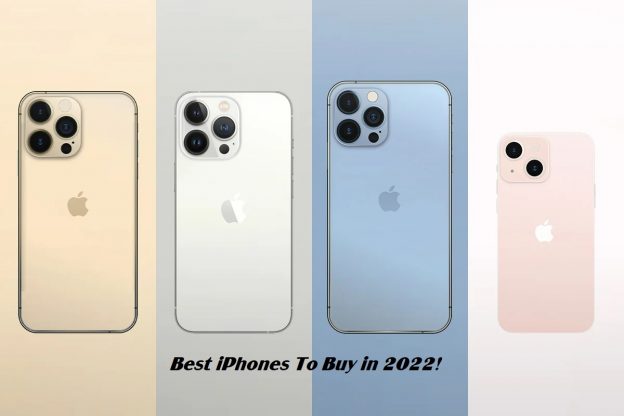
Best iPhones To Buy in 2022!

Apple’s iPhones are some of the best smartphone to buy in 2022. They are feature rich and durable with great after sales service and software support. Currently, Apple’s latest iPhone 13 series are pretty expensive and not everyone needs the latest and greatest devices for their daily life. As such, Apple also sells older models at discounted rates for those customers as well. The older models are fairly capable and they are cheaper while also providing similar experiences to the users. Considering this, we have listed some of the best iPhone’s to buy in 2022 hereafter:

Best iPhone’s to buy in 2022:

  1. The iPhone 13 series

Needless to say, the iPhone 13 series is currently one of the best iPhones that one can buy. Especially, the iPhone 13-pro-max is a beast of a phone that brings the latest and greatest technologies that Apple currently has to offer. In the meantime, other models like the 13 pro and mini are still great offerings for their target customers. Similarly, they come with the fastest mobile processor that is energy efficient as well. Likewise this generation of iPhones also boasts Pro-Motion displays, first for any iPhone till date. Also, the current generation of iPhones will have the longest software support over all other models currently in the market.

  1. iPhone 12 Pro/Max

The iPhone 12 Pro/Max are the last generation flagship devices from Apple that recently received price drops after the launch of the iPhone 13 series And yes, the newer models come with better hardware’s but the 12 pro/max are still some of the best flagship devices out there. For instance: – the 12 pro/max takes identical photos to the 13 series and have similar performance in the day to day uses as well. As such, they are great devices to have flagship Apple experience with significantly less costs.

Face ID with a Mask is Perfect Now (iOS 15.4)

  1. iPhone 12

The iPhone 12 is another great phone to get started in the Apple ecosystem. Some of its notable features include a vibrant display, capable processor and great cameras. Although the phone is now a generation old, it still performs on par with the current android flagships in the market. Likewise, it will also enjoy great software support for many years to come. Currently, the device sells for $699 due to a price cut after the launch of the iPhone 13 series. Hence, it’s a great device for the price and one of the best iPhones to buy in 2022.

  1. iPhone 11 Series

The iPhone 11 Series were launched back in September, 2019 but they are still great devices for their respective prices. Although, they can’t compete with the current flagships, they still out perform similarly priced midrange devices by a mile. In comparison, other android devices will definitely have sub-par performance, little to no software support and worse cameras than the 11 series. As such, they make for great mid-range devices that are also value for money considering their prices. Considering this, they deserve a place in this list as well.

  1. iPhone SE 2020

Launched in 24th April 2020, the iPhone SE 2020 is one of the cheapest devices sold by Apple. Here, the device has a compact design but comes with a flagship processor and provides unrivalled performance. Other notable features include the return of Touch ID in this device. However due to its small form factor, it only has satisfactory battery life and you may need to refuel it timely. But, the starting price of just $399 makes it a great choice for getting into the Apple ecosystem and it works great as a phone for elderly people as well.

iPhone X Setup Guide

iPhone X Setup Guide | Do This as Soon as You Get an iPhone X

The iPhone X is the eleventh iteration of Apple’s iPhone line of devices which was released to the public back on 3rd November, 2017. Also, the iPhone X brought the biggest generational update over any iPhone model launched till date. Some people loved it while many utterly despised its design language. Today we will guide you to setup your iPhone X as soon as you get one.

Starting from the front, the iPhone X was the first iPhone to use an Edge-to-Edge OLED screen with a controversial notch at the top. Next, the trusty Touch ID was removed in the favor of the new Face ID as the default unlocking mechanisms. Also, iOS introduced new gesture navigations for the iPhone X to match its Bezel less design languages. All in all, the iPhone X was also the most expensive iPhone at $999 and the device that started the modern era for the iPhones.

As expected, the iPhone X did bring mixed public opinions about the device. The obnoxious notch was heavily criticized and people didn’t like the removal of the home button and Touch ID. Similarly, the gesture navigation was new and took some time getting used to. Nonetheless, the iPhone X was a great device with awesome cameras and powerful internal specifications which is still capable today. If you own the iPhone X or recently purchased one, we recommend doing the following this to get the most out of it.

iPhone X Setup Guide | Things to do as soon as you get an iPhone X

  1. Check for Software Updates

Regular software updates are the key to keeping our device relevant and secure for many years. Similarly, they bring new features and various bug fixes to your device increasing its usability. Fortunately, Apple has a great track record for providing timely software updates and the iPhone X will receive them for many years. So, its best if you check for software updates as soon as you get your hands on an iPhone X new or used.

  1. Enable Assistive Touch

Assistive Touch is a great feature to have if you’ve just switched from an older model of iPhone to the iPhone X. Basically, you can use the Assistive touch to do almost every action that you want on your iPhone. And, it’s a great method of navigating throughout the UI if you can’t use the gestural navigation properly. You can enable and customize Assistive Touch on your iPhone X through Settings> Accessibility> Touch> Assistive Touch easily.

iPhone 12 Pro The Ultimate Camera and Photo Setting Tutorial

  1. Enable Face ID and Attention

Face ID is the facial recognition system from Apple that is available on the iPhone X. for the most part, it’s very secure and works as intended. However, you can further strengthen its security through your iPhone’s settings. Just head to Settings> Accessibility> Face ID and Attention and turn on both available options. So basically, the “Require Attention for Face ID” will require you to look directly at your device to unlock it. And, it’s a great measure to prevent unwanted people from unlocking your device without your knowledge.

  1. Turn on the Reachability option

Say your hands are small and you have a hard time navigating throughout the iPhone X’s UI. Now, there is a new feature called “Reachability” in your iPhone that will aid you to use your device easily. Just head to Settings> Accessibility> Enable Reachability to enable this feature. The next time, you swipe down on the navigation bar, the whole UI will lower to accommodate for to your hand’s reachability. Next, touch on the upper blank portion to revert to the normal usage mode.

  1. Use a Dark Wallpaper

As you all know, the iPhone X comes with an Edge-to-Edge beautiful OLED screen. Here, the OLED technology enables your iPhone to turn off individual unused pixels on your display. And, this means that your display can show realistic dark scenes on your device. Similarly, these turned off pixels can make the display use less battery power on your device. So, you should use a Dark Wallpaper on your iPhone X to save battery and they also look cool with their deep blacks.

Installation failed Destination folder already exists issue

100 Percent Fix Installation failed: Destination folder already exists issue

Are you facing a serious issue while you try to install plugins on your WordPress Website? Want to learn how you can 100% fix Installation failed: Destination folder already exists issue? Here’s how you can do it.

Follow these exact steps to solve the issue “Installation failed: Destination folder already exists”:

  1. First we refresh dashboard and try to install and activate that plugin again. For that go to Plugin’s and Add New.
  2. Search for that plugin for example here we are about to search for Yoast SEO plugin. After we find that plugin, tap on install. If you see that same issue again, you can follow the steps as of 3.
  3. Now you have to do this. Search for WP File Manager. Install and activate it.
  4. After successful activation, on left hand side, click on WP File Manager. Give it some time to load the files and folders.
  5. Then go inside WP content and then to plugins folder.
  6. Then select the folder with plugin name that having the main issue. Here the folder name of Yoast is WordPress SEO.
    Please note that before doing this we highly recommend to take your Website’s back up first. If any bad happens, we won’t be responsible for it.
  7. Select that folder and delete it.
  8. Now after successful deletion of that plugin’s folder. Try adding and installing that plugin again. Here we tried for the Yoast plugin. Finally, it worked perfectly and the plugin is installed correctly too.

Thanks for following our guide. If this tutorial was helpful, please share this post and subscribe to our channel and support us as well. Like and comment you issues and thoughts too. Thank you!

Might be interested: Face ID with a Mask is Perfect Now (iOS 15.4)

Tutorial Video: